












ISLG Document Management and Data Capture Processes
Hello all,
To help the UX design team understand the ISLG document management and data capture processes, the following provides a step-by-step guide on how the processes work.
To help the UX design team understand the ISLG document management and data capture processes, the following provides a step-by-step guide on how the processes work.
Adding documents to ISLG collection
When a new document is identified by the Director of Legal Content (
 Paul
Paul

The UIN Master List is the primary ledger for recording and tracking all documents added to the Document Database: https://www.investorstatelawguide.com/CoreComponents/DocumentDatabase#gridSearch and XML Agreements: https://www.investorstatelawguide.com/CoreComponents/Agreements.
The ISLG document collection is driven by dispute documents; therefore the first step is to add the dispute document to the UIN Master List under the Dispute Document tab. Depending on whether the associated data exists on the system, it may require adding a dispute, treaty and set of arbitration rules to the BIT and Treaties, Arbitration Rules and Disputes tabs.
If a dispute document is identified as requiring data capture analysis (i.e., integrated into the Subject Navigator, Article Citator, Jurisprudence Citator, Publication Citator and Terms & Phrases). The dispute document is added to the DCD status list, where it is assigned and tracked through the data capture process.
(1) XML Documents
If the dispute document requires creating a new set of arbitration rules or treaty, the Document Manager (
 Irit
Irit
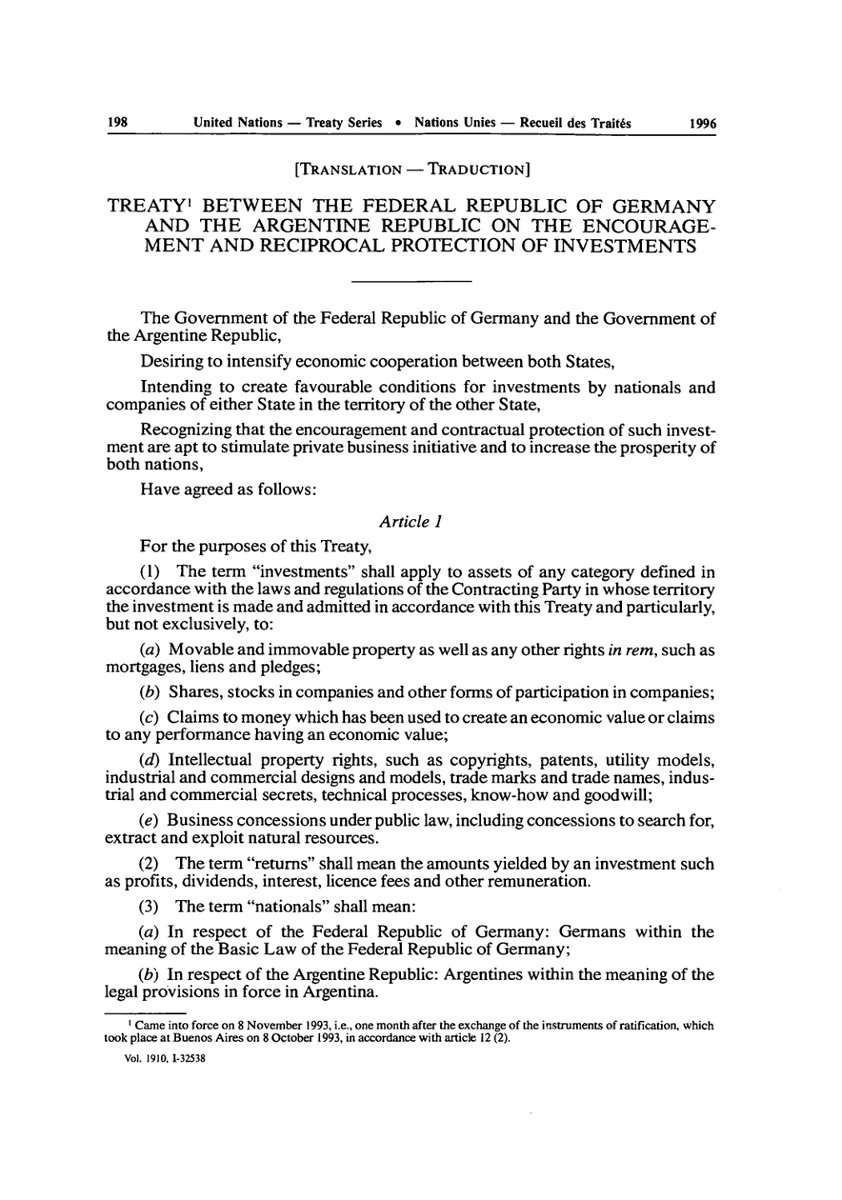
CDS returns the XML document.

The Document Manager adds the XML document to XML agreements: https://www.investorstatelawguide.com/CoreComponents/AddAgreement and the PDF to the Document Database (Category A for Arbitration Rules and Category B for Treaty): https://www.investorstatelawguide.com/CoreComponents/AddDocumentStep1. As part of that process, the Document Manager associates the XML document with the Document Database entry, and populates the relevant list of provisions: https://www.investorstatelawguide.com/CoreComponents/AddDocumentStep2Case1and2?docId=63 for the purpose of creating the Articles/Provisions within the Article Citator uploader: https://www.investorstatelawguide.com/CoreComponents/ArticleCitator?docId=2607&Add=True.
(2) Dispute Documents
The Document Manager inserts destination codes into the PDF dispute document.
and insert them as anchor codes for the dispute document: https://www.investorstatelawguide.com/CoreComponents/AddDocumentStep1?docId=2607.
Data Capture Process
If a dispute document is identified as needing data capture analysis, the Director of Legal Content makes the appropriate assignments in the DCD Status List (see above). The process is separated into two parts: (2) Subject Navigator and (2) DCD.
(1) Subject Navigator
The Director of Legal Content assigns the document to an editor and send the details via email. The editor performs the analysis, and inserts relevant entries directly into the Master Tree: https://www.investorstatelawguide.com/masterTree/index?rootNodeID=&expandList=,1# with the entries set as inactive.
The Director of Legal content reviews and activates the relevant entries, and marks the document complete in the DCD status list.
(2) Data Capture Documents (DCDs) - Citators
The DCD process captures all the data relevant for the citators (Article, Jurisprudence and Publication Citators and Terms & Phrases) and general information about the disputes and dispute documents. The DCD process begins by the Director of Legal Content assigning the document to a legal analyst, and providing them with the PDF dispute document and updated DCD templates.
The legal analyst reviews and shades the PDF documents.
The shading (text highlighted in different colours) of PDF represents references to articles (yellow), jurisprudence (green), publications (red) and terms & phrases (purple) that will need to be captured in the DCDs. Blue shading represents references to articles (light blue), jurisprudence (dark blue) and publications (dark blue) that do not require capturing in a DCD, because they are deemed as not relevant to tribunal's finding by the legal analyst.
When the shading is complete, the legal analyst creates separate DCDs for the Article Citator, Jurisprudence Citator and Publication Citator:
It's important to note that additional data beyond that necessary for the citator is added to Article Citator DCD, which includes various metadata relevant to the document, dispute, tribunal, counsel, etc. This additional information is not currently uploaded to the document database, and will be the basis point for creating data analytics tools for the rebuilt applications.
When DCD is complete, the legal analyst sends the documents back to the Director of Legal Content, who examines the shaded PDF and DCDs, and makes any necessary corrections. When the review process is complete, the individual DCDs are added to the Master Lists for the Article Citator, Jurisprudence Citator and Publication Citator.
The Director of Legal Content also adds any relevant entries to the Treaties & Rules Master List.
The updated Master Lists are passed on to the Document Manager, who manually uploads all the new DCD entries through the applicable dispute document in the Document Database: https://www.investorstatelawguide.com/CoreComponents/AddDocumentStep3Type2?docId=5793. If there any issue or discrepancies identified by the Document Manager, they are reported to the Director of Legal Content through citator audit reports.
The Director of Legal of content reviews the audit report, makes any necessary changes, and sends the reports back to the Document Manager for final changes.
(1) Subject Navigator
The Director of Legal Content assigns the document to an editor and send the details via email. The editor performs the analysis, and inserts relevant entries directly into the Master Tree: https://www.investorstatelawguide.com/masterTree/index?rootNodeID=&expandList=,1# with the entries set as inactive.
The Director of Legal content reviews and activates the relevant entries, and marks the document complete in the DCD status list.
(2) Data Capture Documents (DCDs) - Citators
The DCD process captures all the data relevant for the citators (Article, Jurisprudence and Publication Citators and Terms & Phrases) and general information about the disputes and dispute documents. The DCD process begins by the Director of Legal Content assigning the document to a legal analyst, and providing them with the PDF dispute document and updated DCD templates.

The legal analyst reviews and shades the PDF documents.
The shading (text highlighted in different colours) of PDF represents references to articles (yellow), jurisprudence (green), publications (red) and terms & phrases (purple) that will need to be captured in the DCDs. Blue shading represents references to articles (light blue), jurisprudence (dark blue) and publications (dark blue) that do not require capturing in a DCD, because they are deemed as not relevant to tribunal's finding by the legal analyst.
When the shading is complete, the legal analyst creates separate DCDs for the Article Citator, Jurisprudence Citator and Publication Citator:

It's important to note that additional data beyond that necessary for the citator is added to Article Citator DCD, which includes various metadata relevant to the document, dispute, tribunal, counsel, etc. This additional information is not currently uploaded to the document database, and will be the basis point for creating data analytics tools for the rebuilt applications.
When DCD is complete, the legal analyst sends the documents back to the Director of Legal Content, who examines the shaded PDF and DCDs, and makes any necessary corrections. When the review process is complete, the individual DCDs are added to the Master Lists for the Article Citator, Jurisprudence Citator and Publication Citator.
The Director of Legal Content also adds any relevant entries to the Treaties & Rules Master List.
The updated Master Lists are passed on to the Document Manager, who manually uploads all the new DCD entries through the applicable dispute document in the Document Database: https://www.investorstatelawguide.com/CoreComponents/AddDocumentStep3Type2?docId=5793. If there any issue or discrepancies identified by the Document Manager, they are reported to the Director of Legal Content through citator audit reports.
The Director of Legal of content reviews the audit report, makes any necessary changes, and sends the reports back to the Document Manager for final changes.
I'm not sure if this step is important to mention in this email you sent out, but before uploading any PDFs, all PDF documents must be edited and checked by:
1. Removing hidden information
2. Making sure the text in the PDF can be selected, copied/pasted. Using the Recognize Text tool to convert PDF images into editable and searchable data.
Thanks,
Irit
Also, there's a column called NAFTA Priority. What does this refer to?
Re: Type of Document, yes, that's correct. The number corresponds with the document numbers on the admin site:
This actually brings up an issue, I'd like to change. Currently, a document can only be assigned one document type. However, it would be useful to have the ability to assign a document multiple document types. Also, there should be a Type of Document value list that can be modified by the admin user.
You can ignore the NAFTA Priority column. This relates to early build priorities, and is no longer relevant to the project.
Thanks,
Morgan